



There are few things you need to know to get started:
- You must be enrolled in our Online Banking.
To enroll – visit any of our local branches to fill out an Online Banking Application.
*Each mobile app user must have their own Username (Customer ID) and Password. - You must have a valid mobile phone number and email address that you will use with your Mobile Banking account.
- Download our Bank of Richmondville App with your mobile device through the respective app store and follow the device’s instructions to download and install. The app is compatible with any Apple or Android web-enabled mobile device.
- Log in using your Bank of Richmondville Online Banking Username (Customer ID) and Password.
- You will receive a text message with a security code that you must enter.
- Create a 4-digit passcode and enter again to confirm it. You can also use facial/fingerprint recognition (depending on your device settings) for even greater security.
- Carefully read and agree to the End User License Agreement and Bank of Richmondville’s Mobile Banking Agreement.
- View the short tutorial to learn how to use your Bank of Richmondville Mobile Banking application.
- Now you are on your way!


Mobile Device Security
- Configure your device to require a passcode to gain access if this feature is supported in your device.
- Avoid storing sensitive information. Mobile devices have a high likelihood of being lost or stolen so you should avoid using them to store sensitive information (e.g. passwords, account numbers, etc.). If sensitive data is stored, enable encryption to secure it.
- Keep your mobile device’s software up‐to‐date. These devices are small computers running software that needs to be updated just as you would update your PC. Use the automatic update option if one is available.
- Review the privacy policy and data access of any applications (apps) before installing them. Only download apps from trusted app stores (Apple, Google Play).
- Disable features not actively in use such as Bluetooth, Wi‐Fi, and infrared. Set Bluetooth‐ enabled devices to non‐discoverable when Bluetooth is enabled.
- Delete all information stored on a device before the device changes ownership. Use a “hard factory reset” to permanently erase all content and settings stored on the device.
- “Sign out” or “Log off” when finished with an app rather than just closing it.
- Utilize antivirus software where applicable (i.e. Android, Windows, etc.).
- Do not jailbreak or otherwise circumvent security controls.
Mobile Banking Safety Tips
Managing your finances using a smartphone or tablet can be very convenient. However, you should consider these safety tips to protect your account information:
- Be proactive in protecting your smartphone and/or tablet by installing anti-malware software on the device.
- Research any application (app) before you download it. Fraudulent apps are often designed with names that look like real apps. It’s best if you access an app using a link from the provider’s website.
- Create a strong password or PIN for your mobile app and your device.
- Use an auto-lock or time-out feature so your device will lock when it is left unused for a certain period of time.
- Upgrade your device to the latest operating system version.
- Take precautions in case your device is lost or stolen.
- Avoid leaving your device unattended in public places.
- Consult your wireless provider to see if they provide a service to remotely erase your device or turn off access to your device if it lost or stolen.
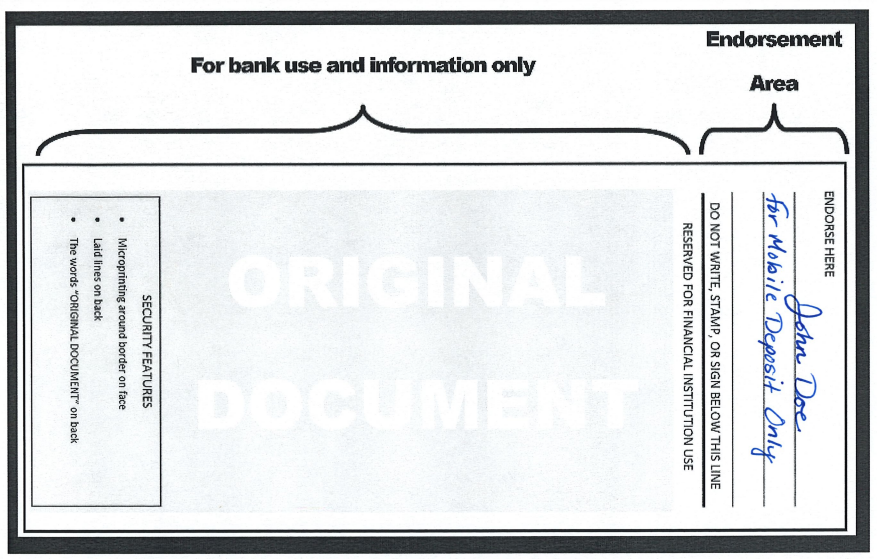
Mobile Deposit Endorsement Tips
- Must be written legibly with dark ink and within endorsement area of check
- All four corners of check must be visible and not up-side down
- No overlapping with other text, signatures, etc.
- Endorse name as it appears on the Payee line, followed by printing the words “For Mobile Deposit Only”
- You must first set up BillPay accounts on Online banking before using this feature.